
Full View
Similar items
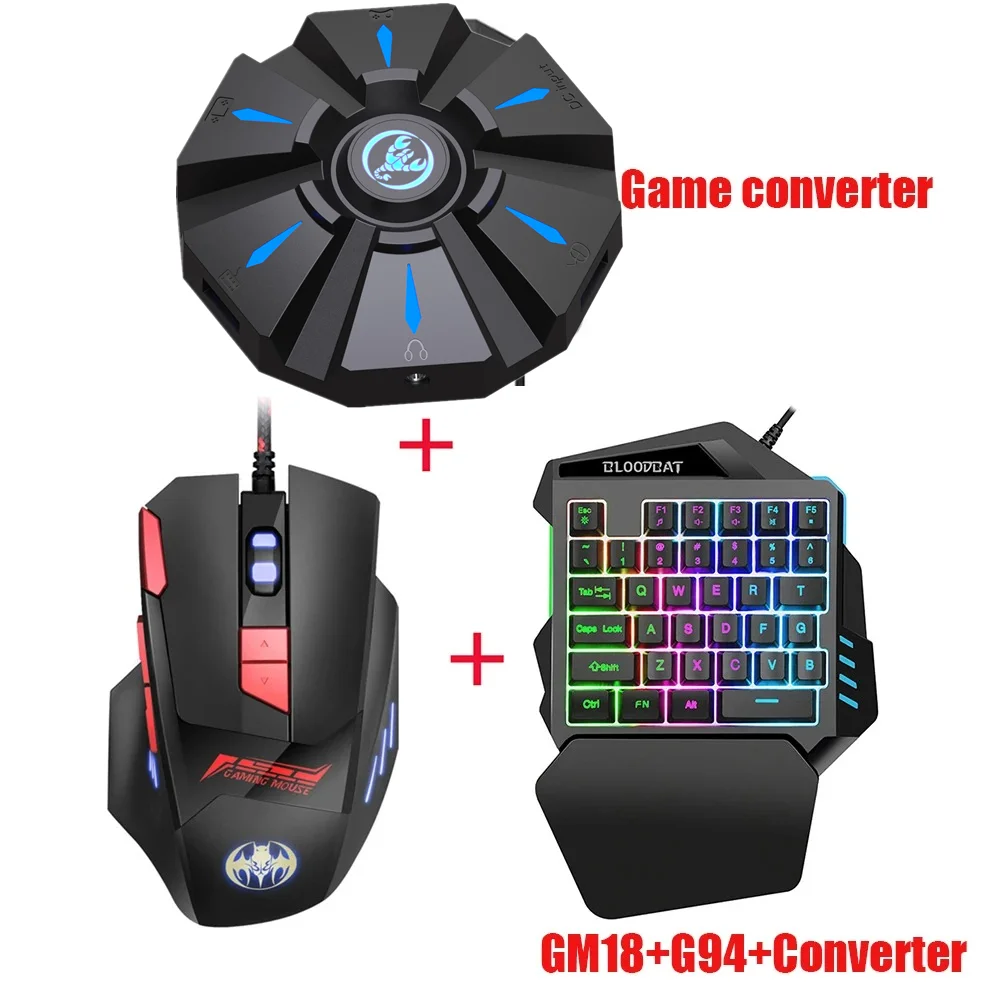
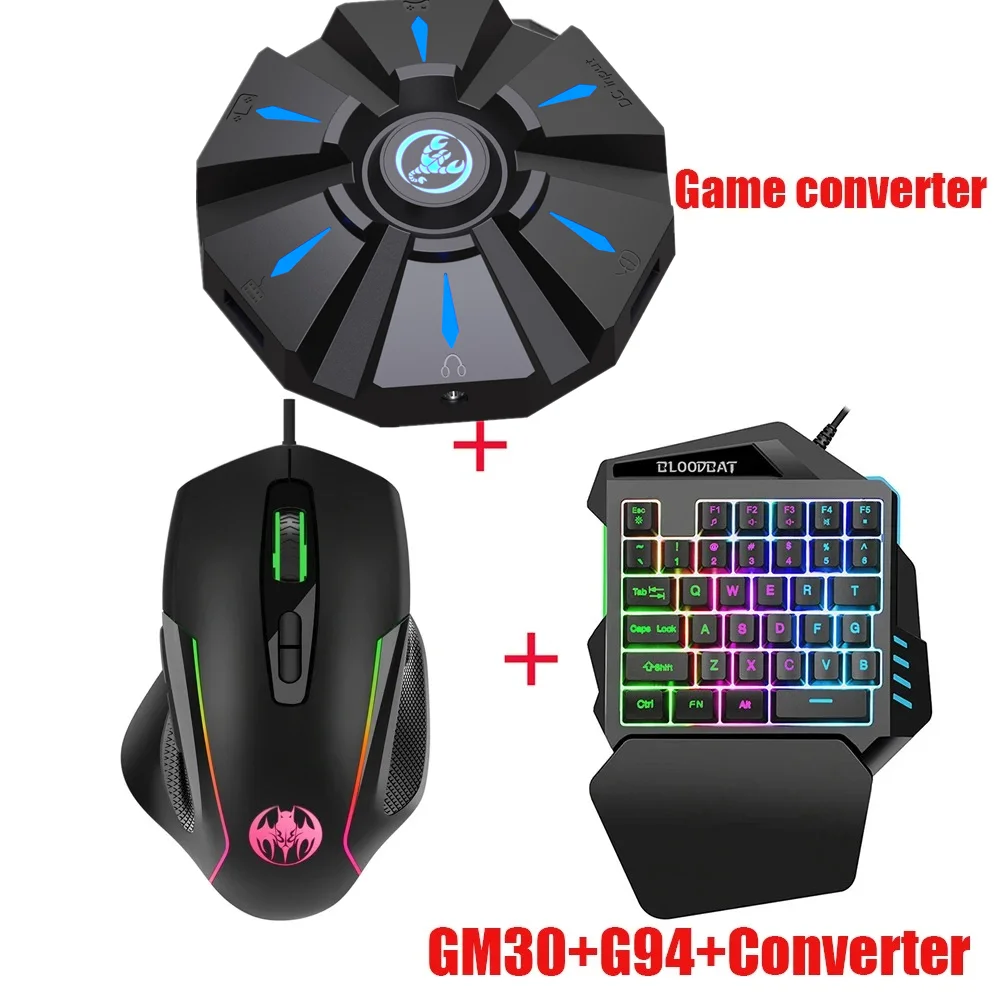
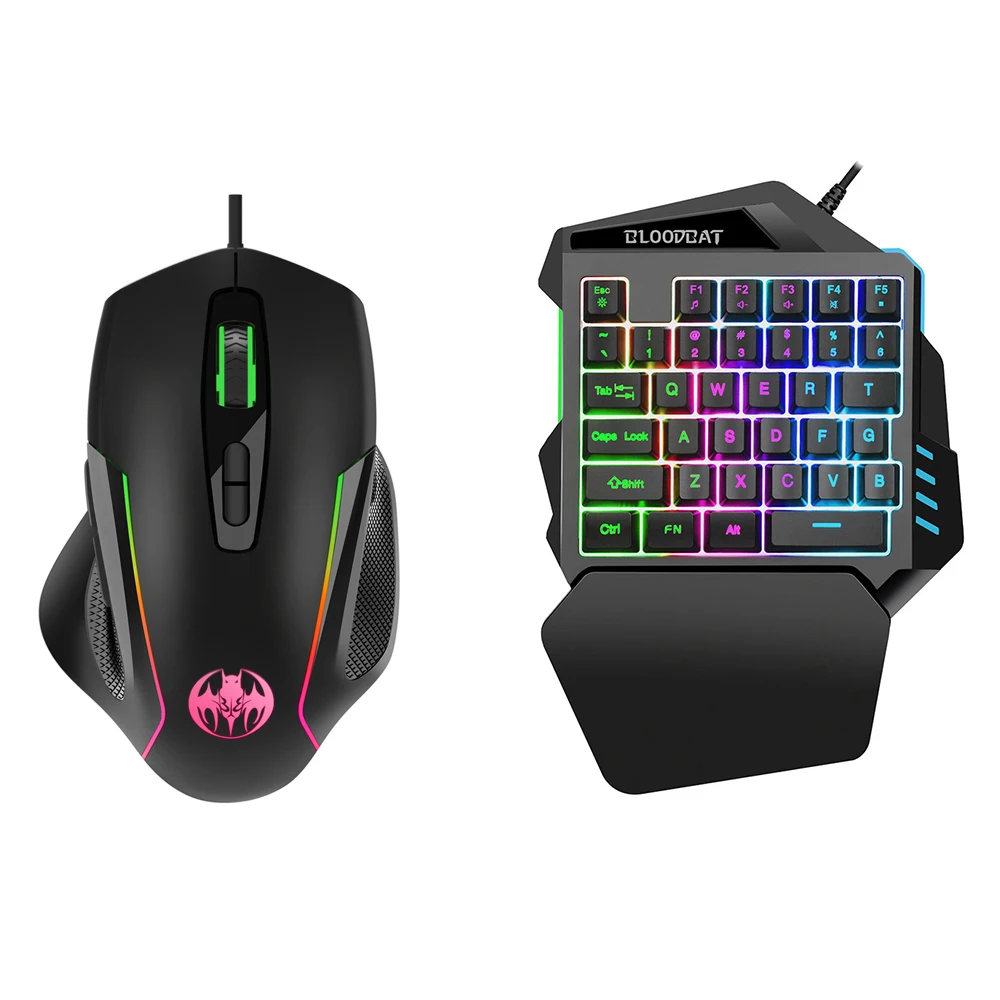
One-Handed RGB Gaming Keyboard With Mouse 6400 DPI USB Wired 35 Keys Combo Converter For Xbox One PS4 Switch PS3 PC
£22.53£36.85
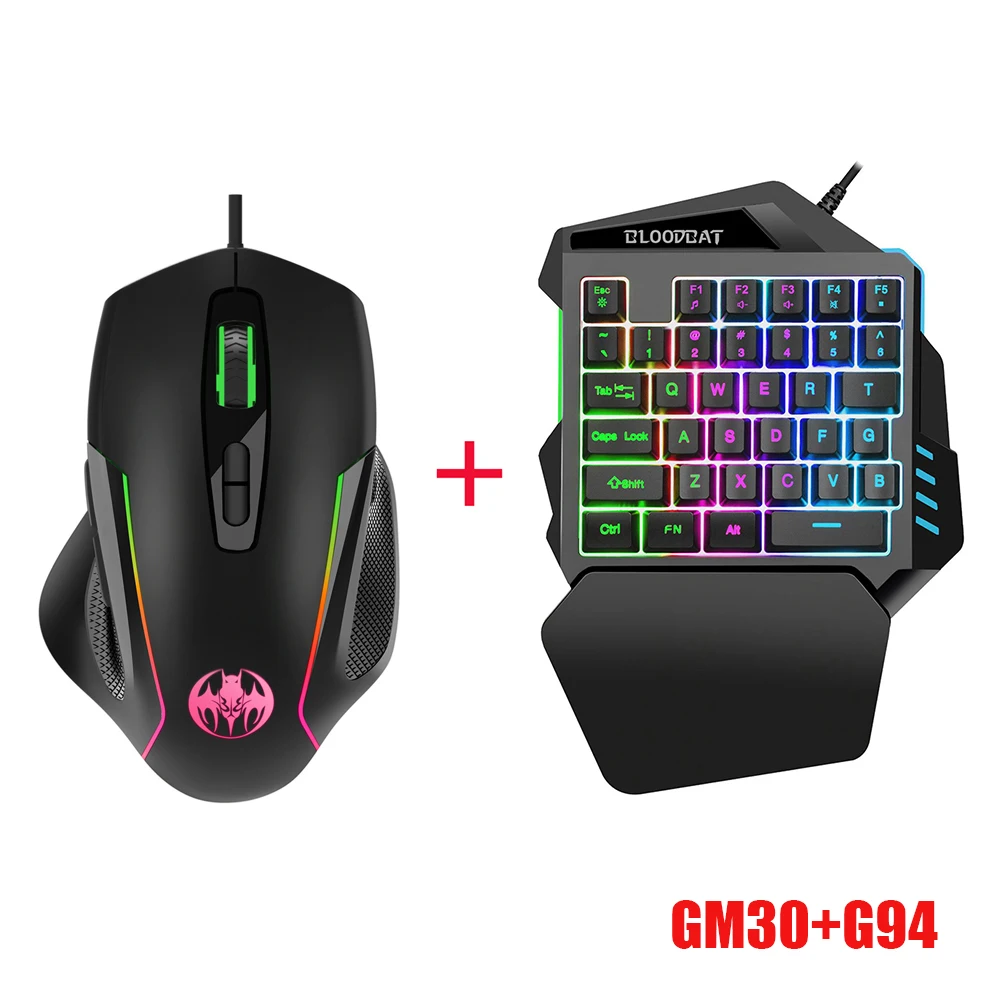
Color : GM30 G94
Quantity :

Report
Include copyright infringementFree Standard Shipping. See details
Estimated between Fri, Jul 10 and Mon, Jul 13
You can return the product within 30 days of receipt. See details
Shop with confidence

Money Back Guarantee
Get the item you ordered or your money back. Learn more
About this item
Sourced from TechNex
Seller assumes all responsibility for this listing.Item number: 39286595
Item specifics
Size
Full-size
Key type
Mechanical Switches
Switch Type
Linear, Tactile, Clicky
Compatibility
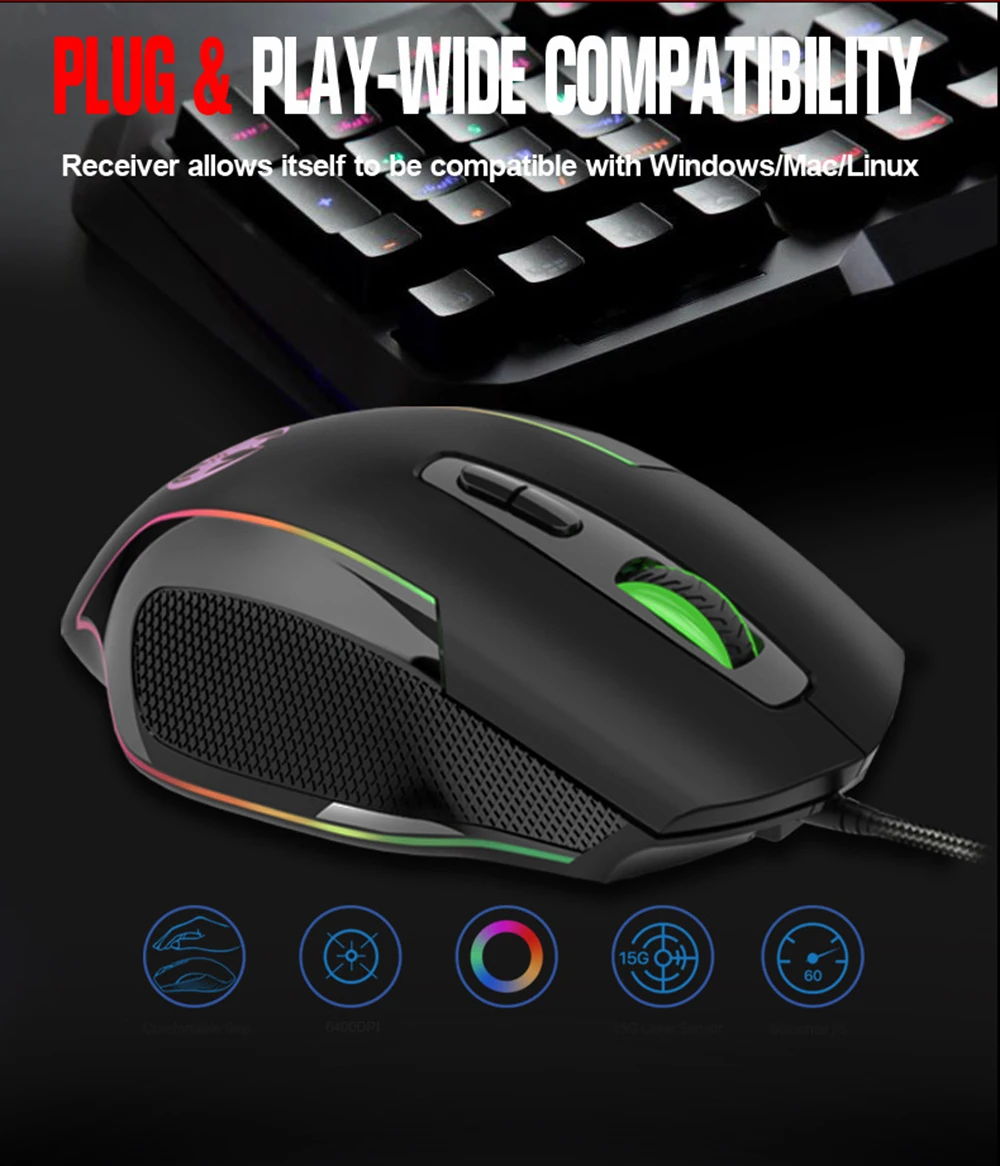
Windows, macOS, Linux
Connected devices
1
Illuminated Keys
YES
Connectivity
Bluetooth, Logi Bolt USB
USB Type
USB-A
Logi Options
Yes
Item description from the seller
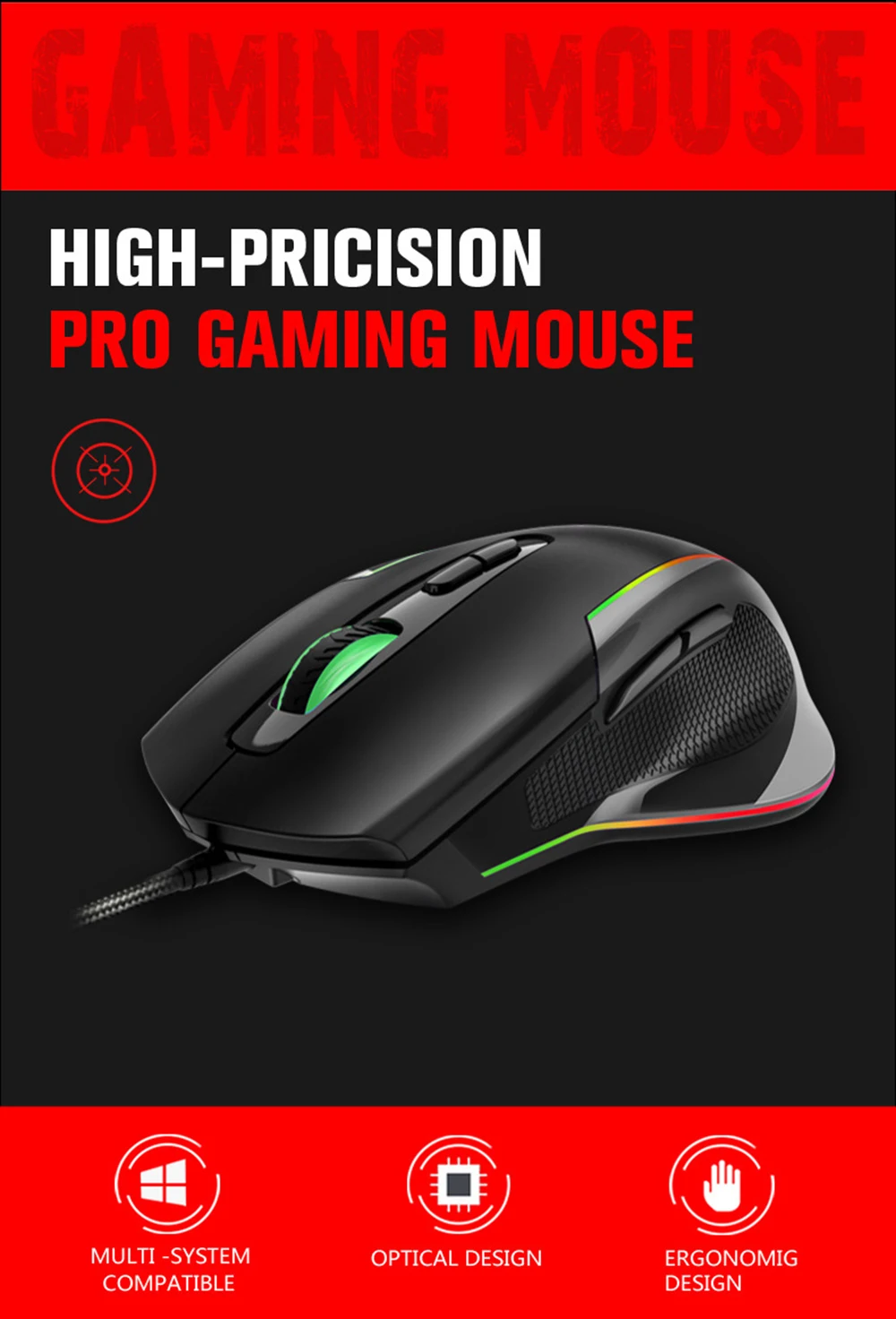
High-Resolution Optical Sensor
Experience precise control with a 6400 DPI optical resolution, ensuring accuracy in every movement.
Ergonomic Design
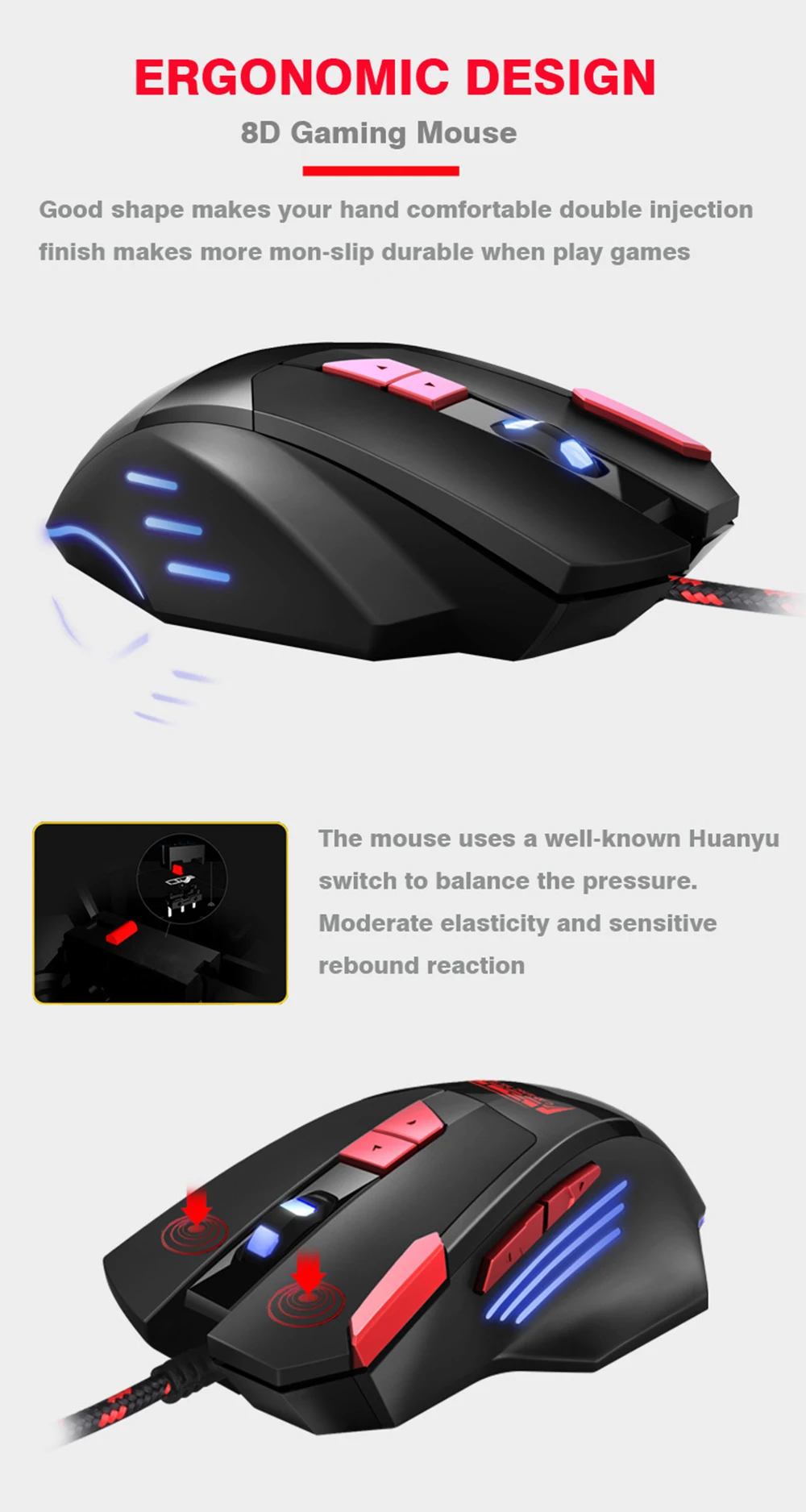
Designed for comfort, this keyboard-mouse combo supports human engineering, reducing strain during long gaming sessions.
USB Wired Connectivity
Enjoy stable and reliable performance with USB wired connectivity for both keyboard and mouse.
Multi-Platform Compatibility
Seamlessly switch between Xbox One, PS4, Switch, PS3, and PC with a single USB wired connection.
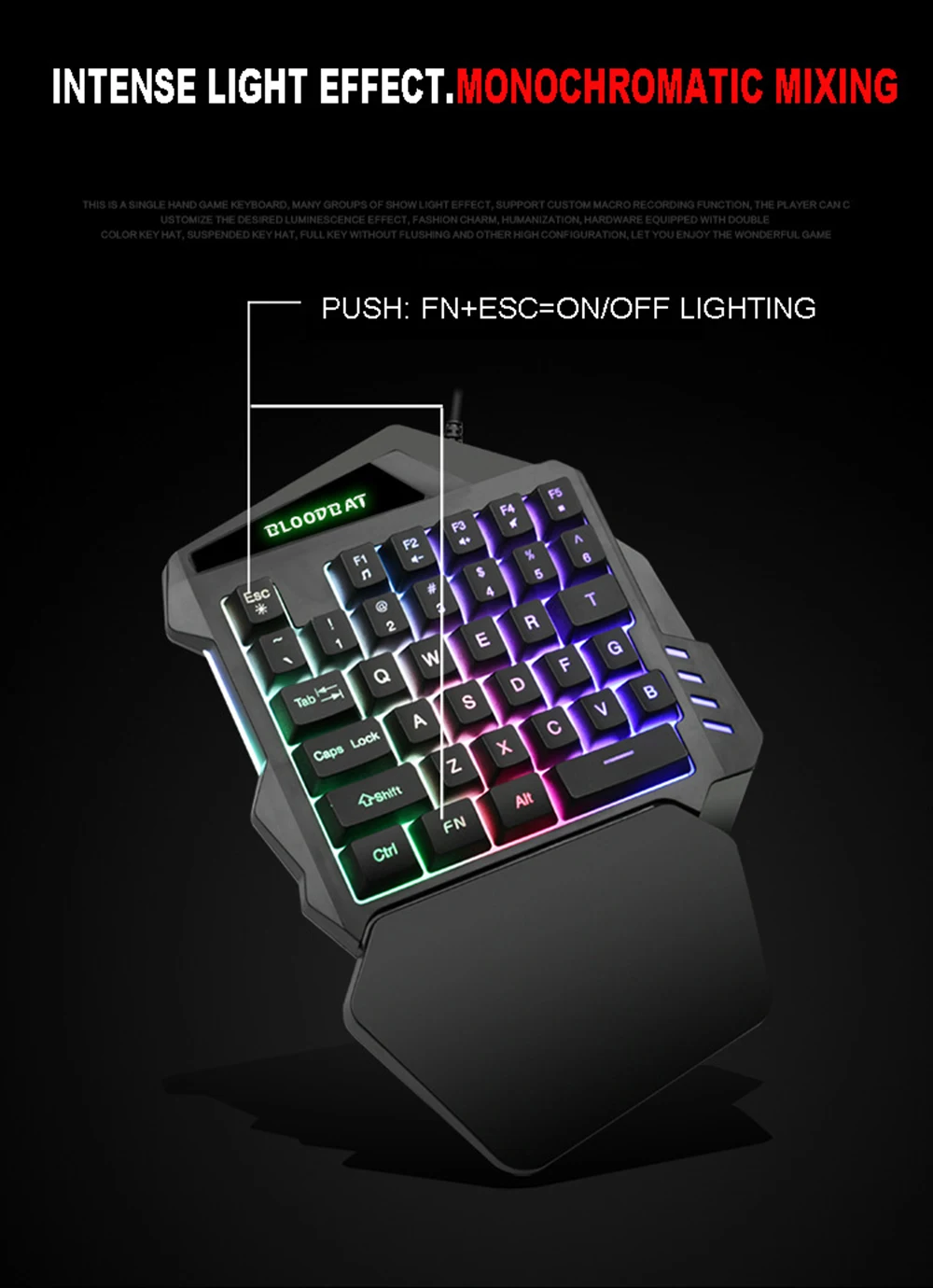
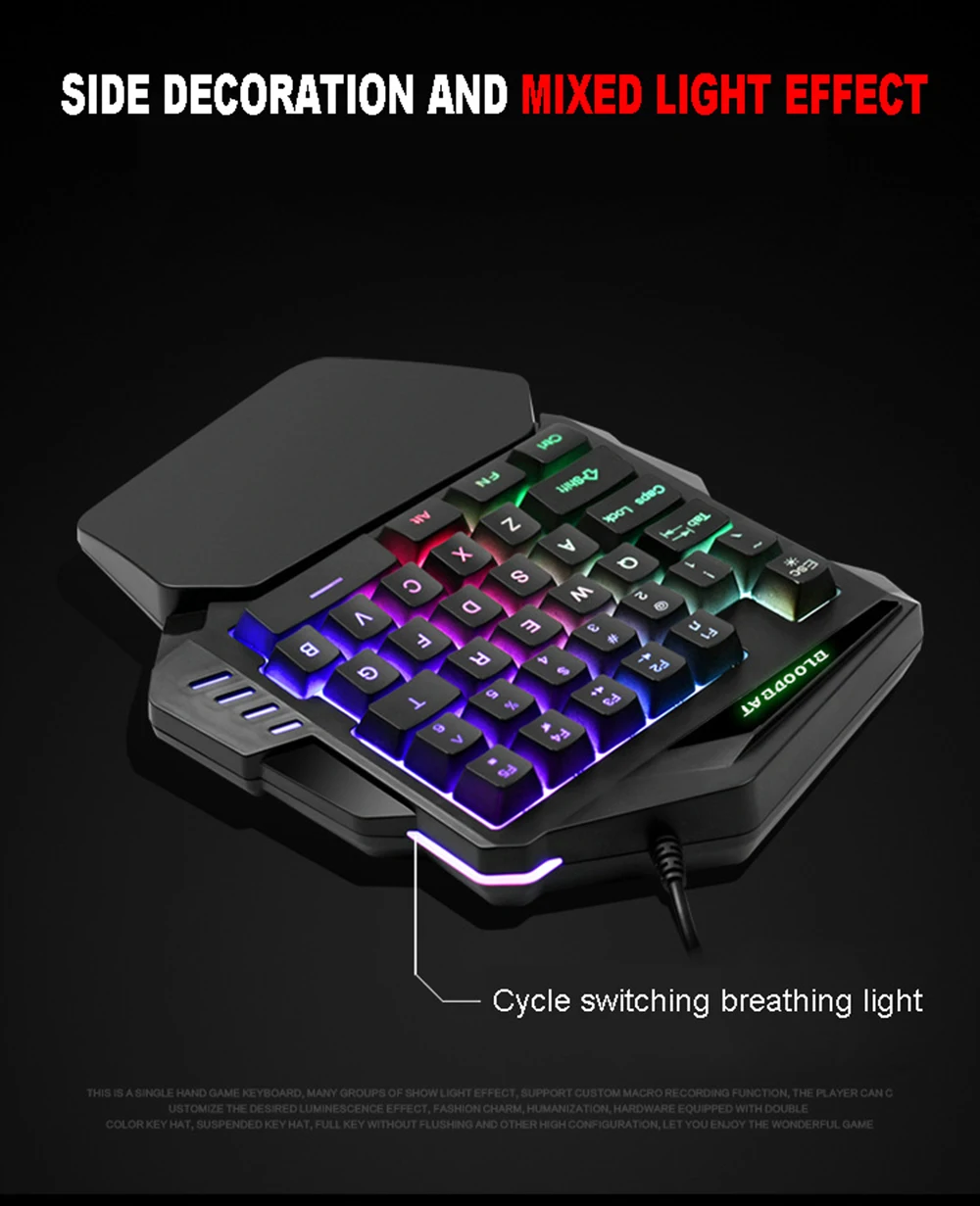
RGB Gaming Keyboard
Immerse yourself in vibrant gaming with an RGB lighting keyboard, enhancing your gaming experience.
Notes:
After you place an order with the mouse, if you need programming, please leave your email address. I will send you the programming software!
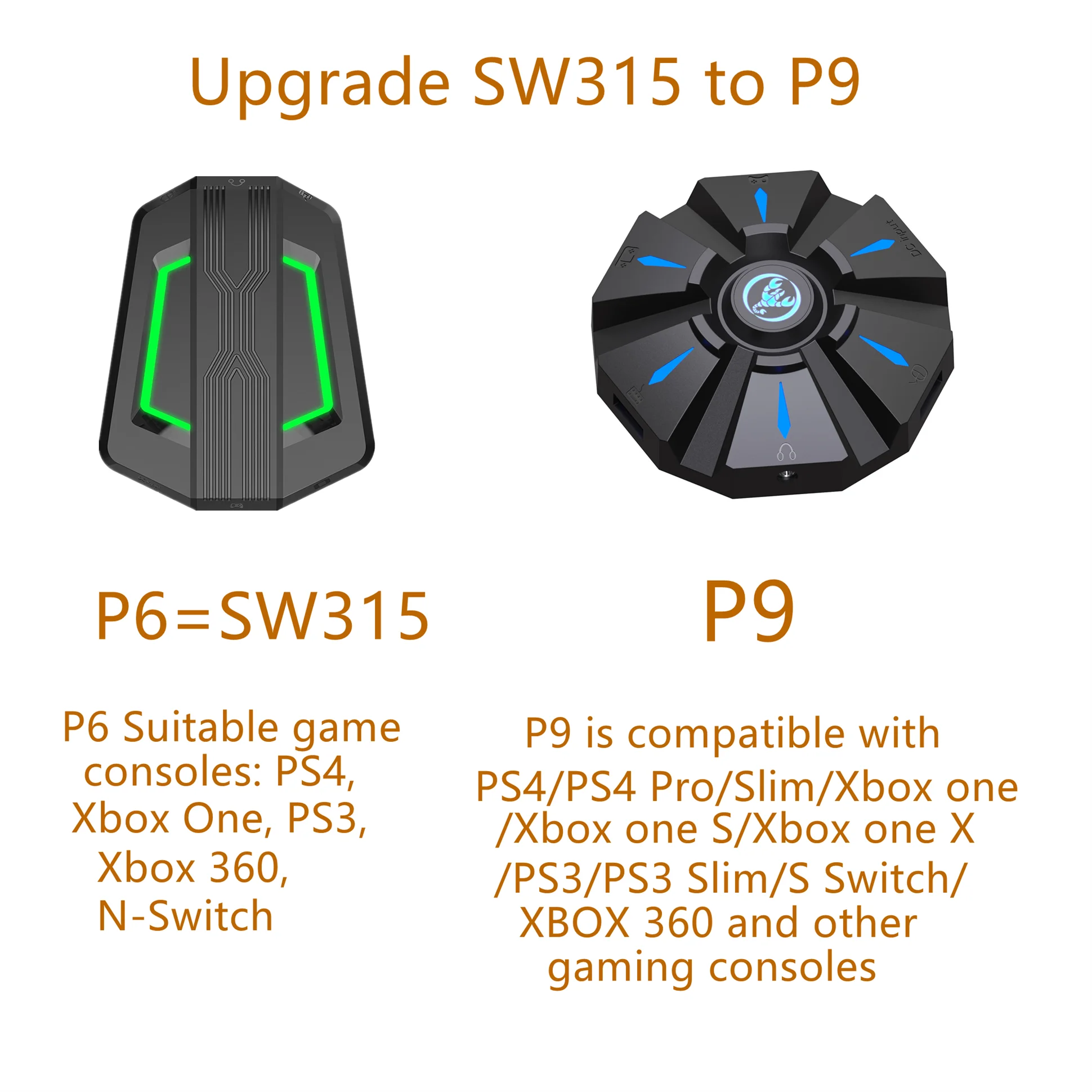
P6=SW315 has been discontinued, and
The powerful P9 will replace the old one.
version P6.Please confirm before
placing an order!
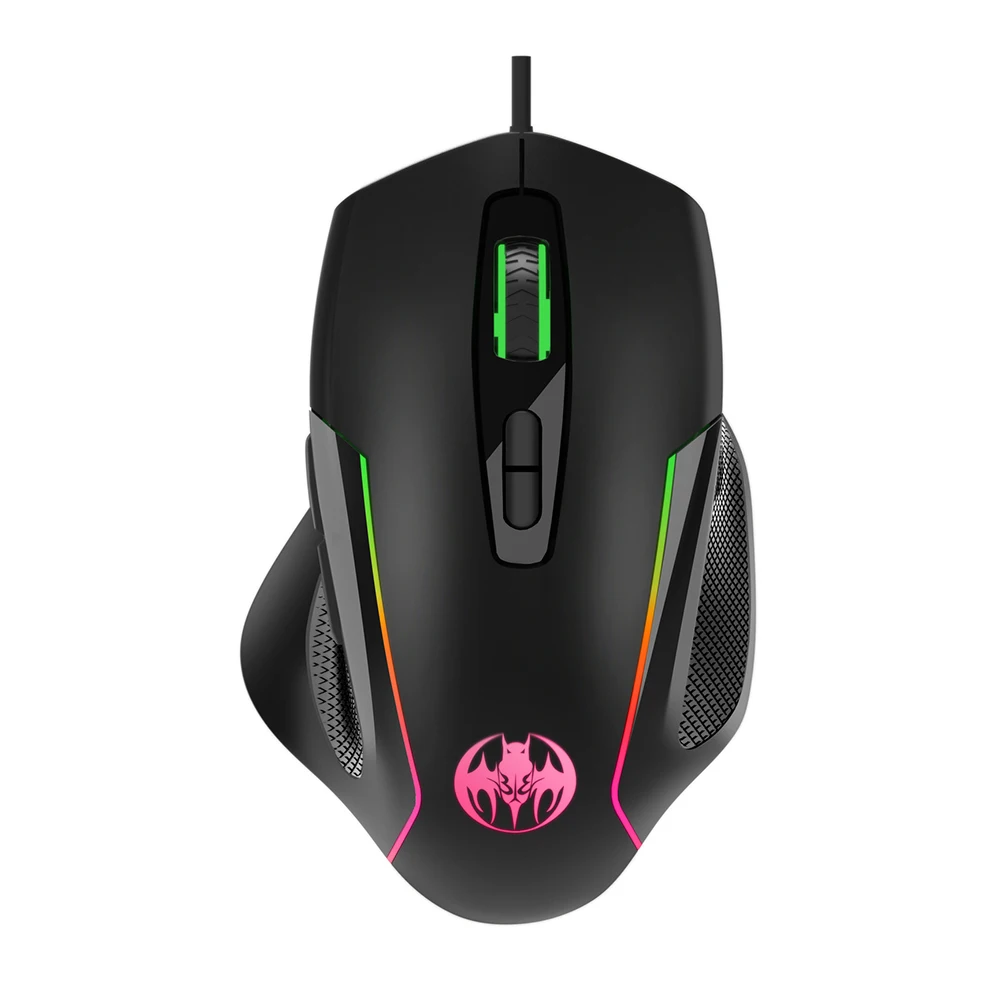
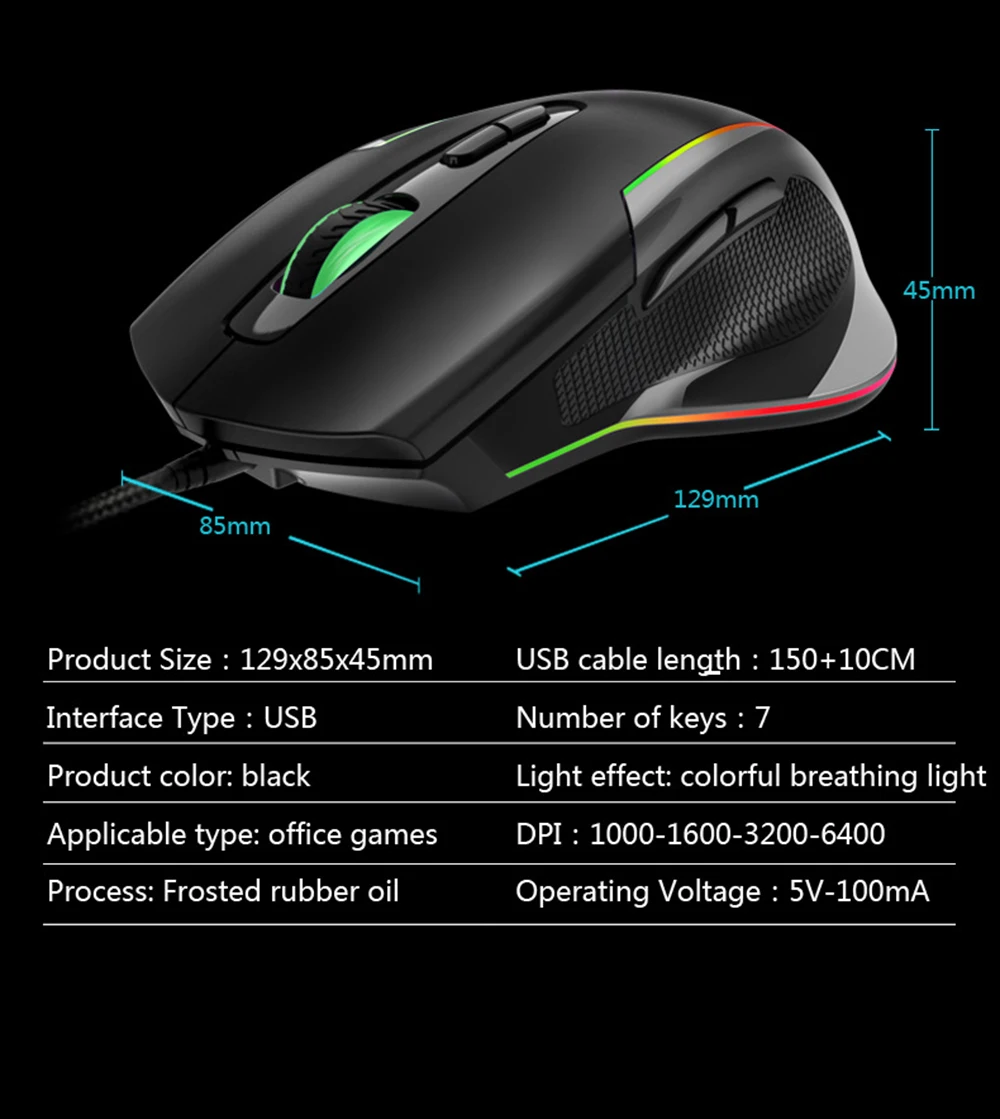
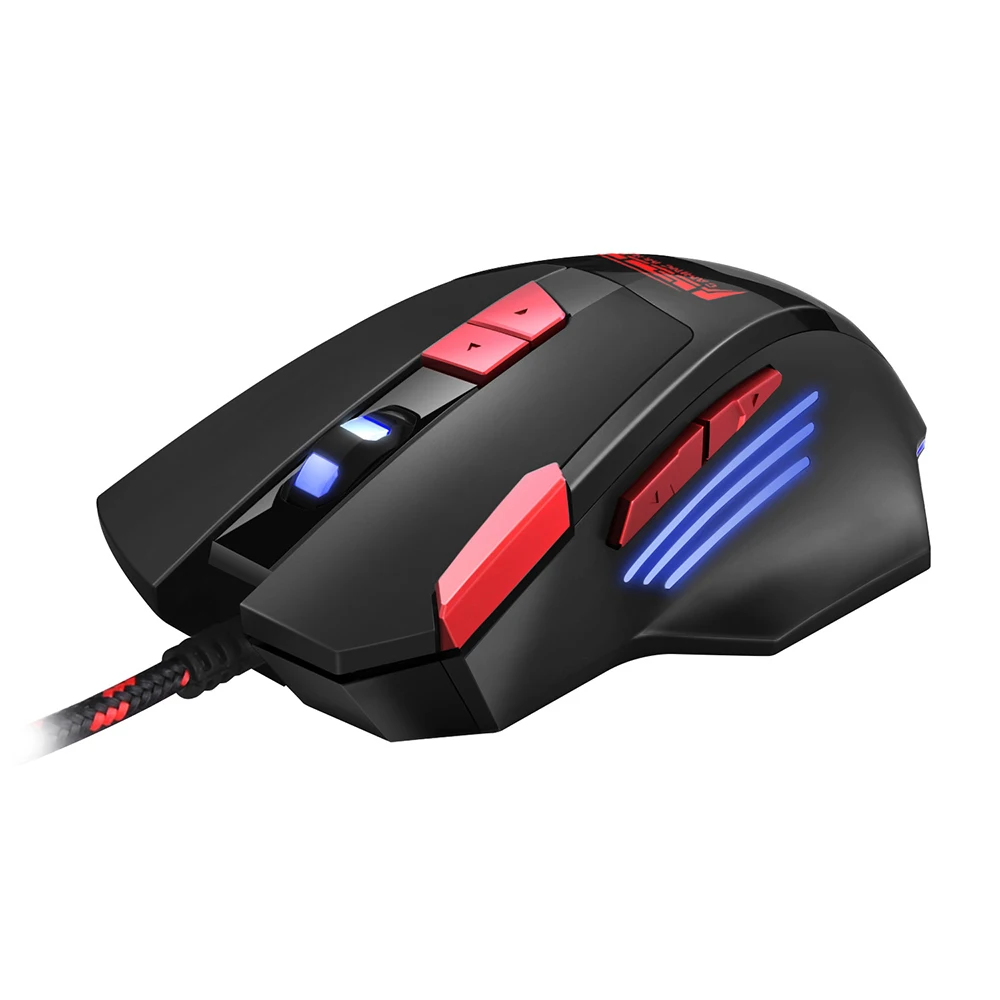
Mouse specification GM30:
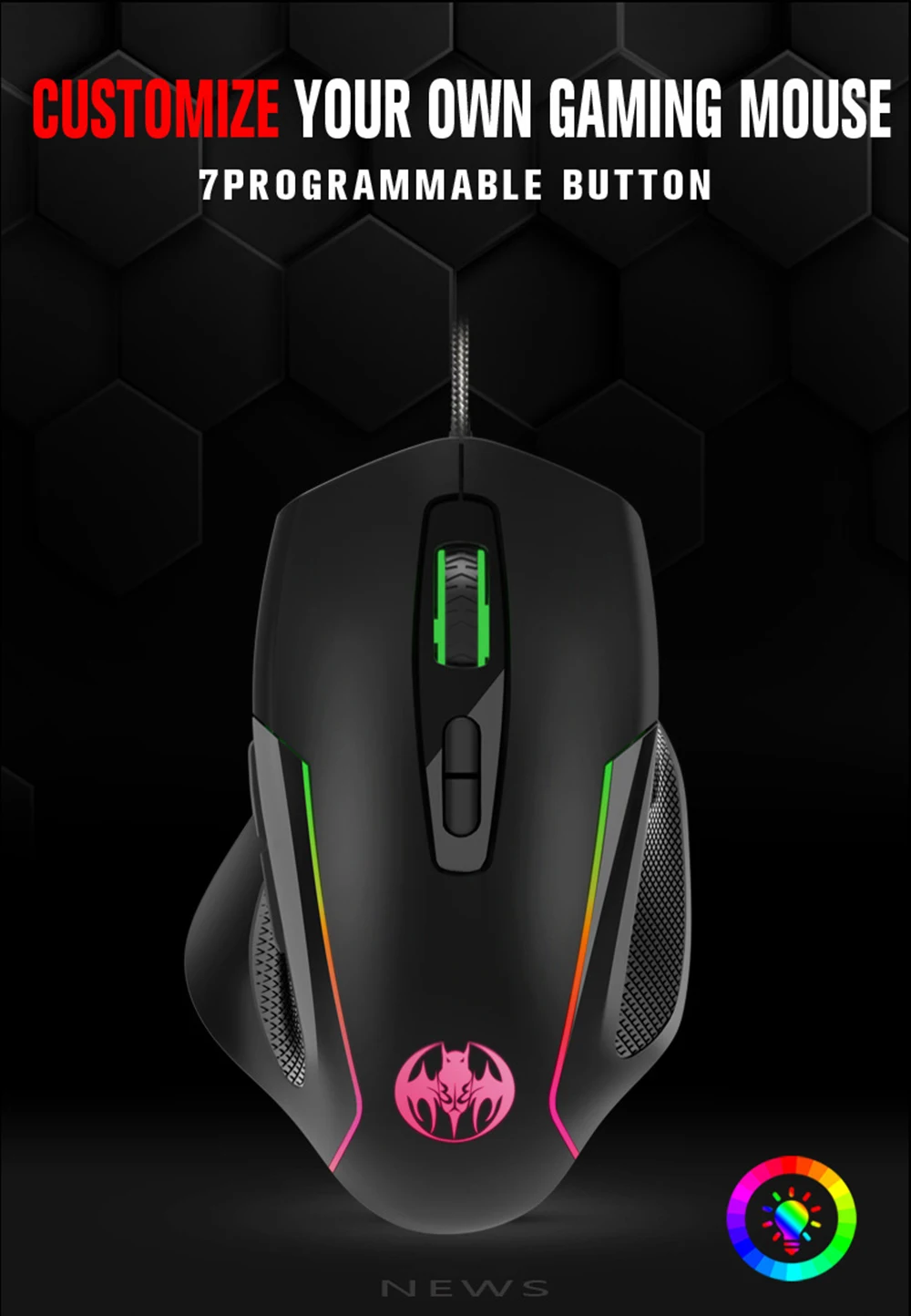
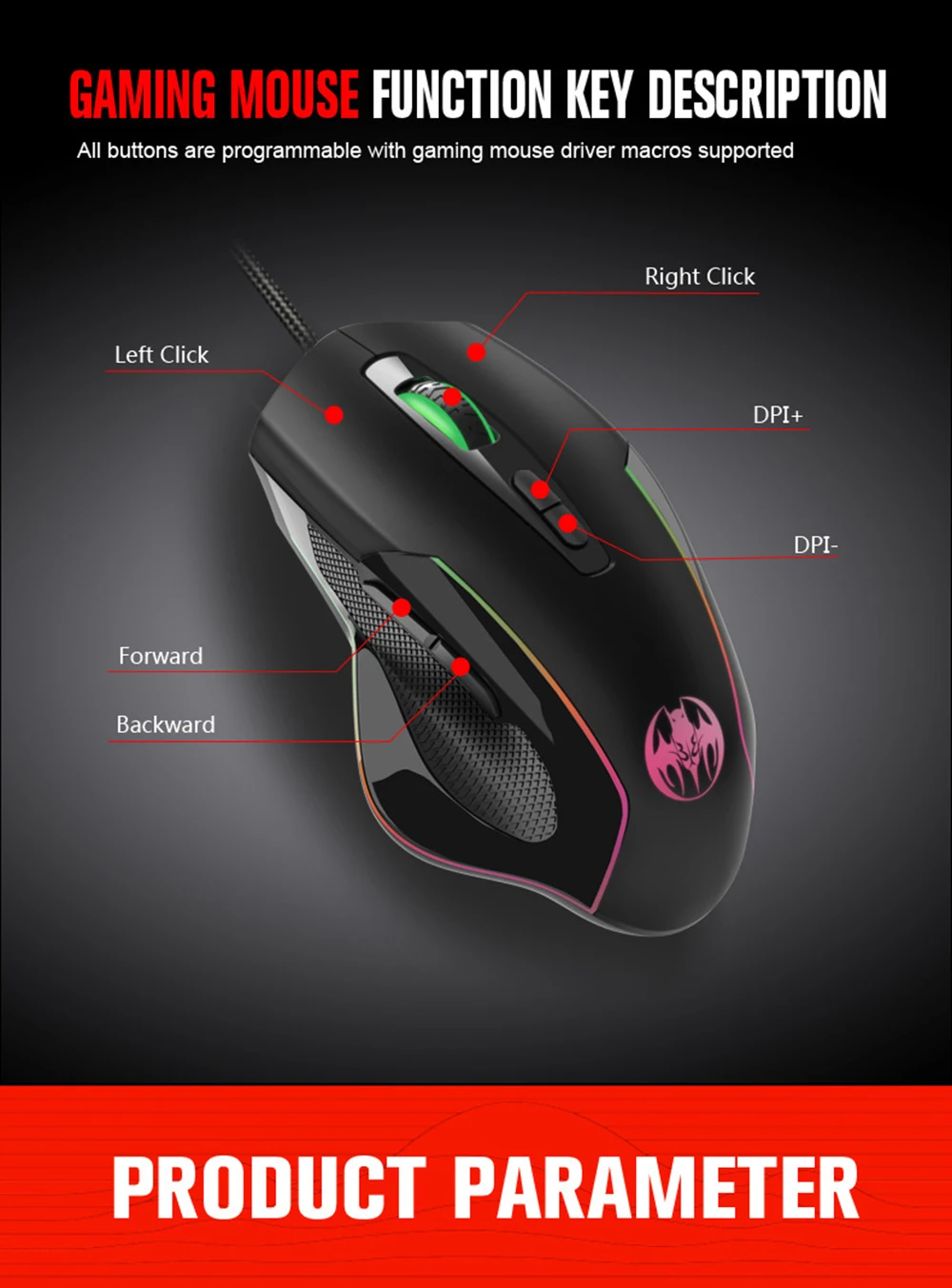
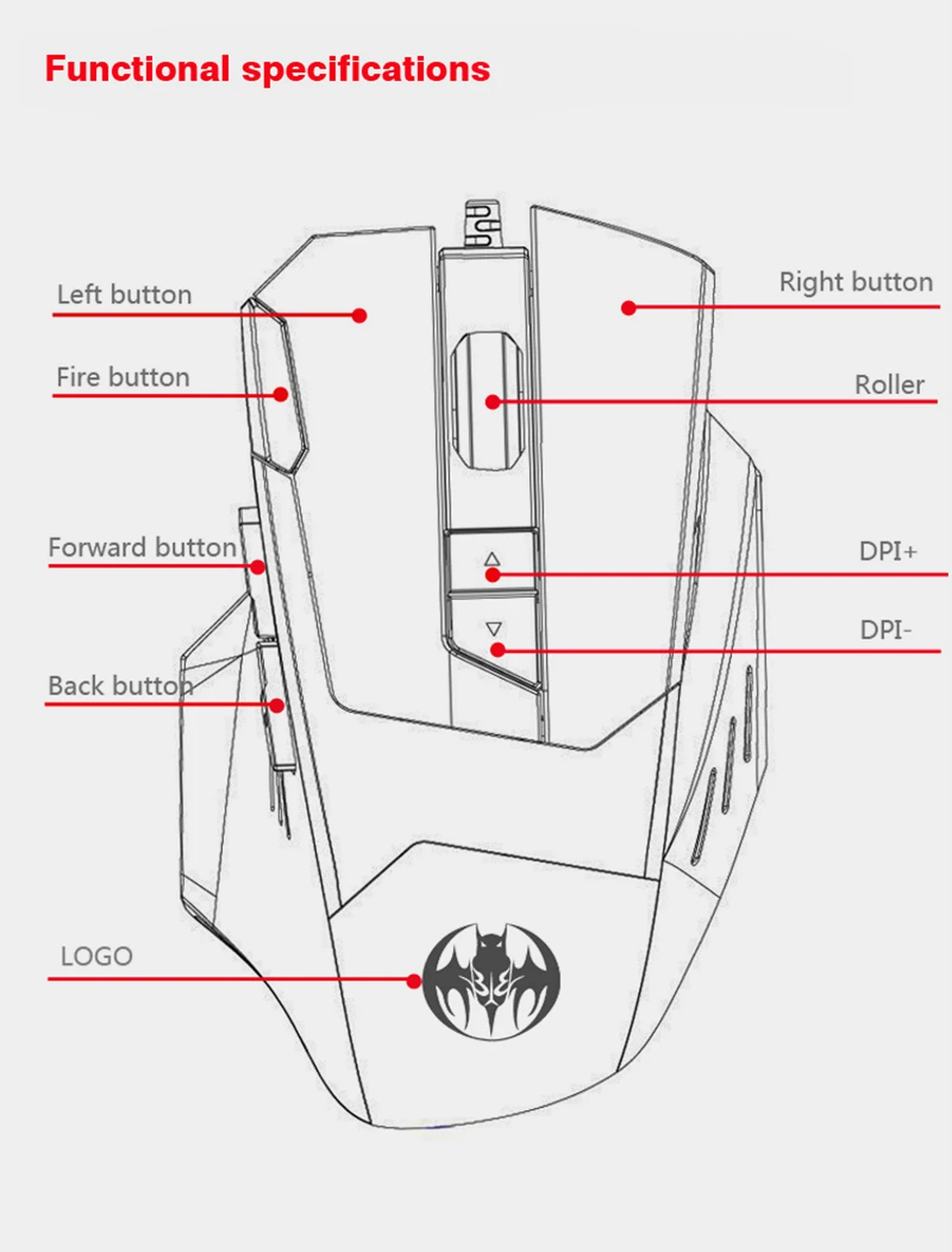
Number of keys: 7
Operator: USB cable optics
Voltage and current: USB 5V-100mA
Braided wire: 140M
M
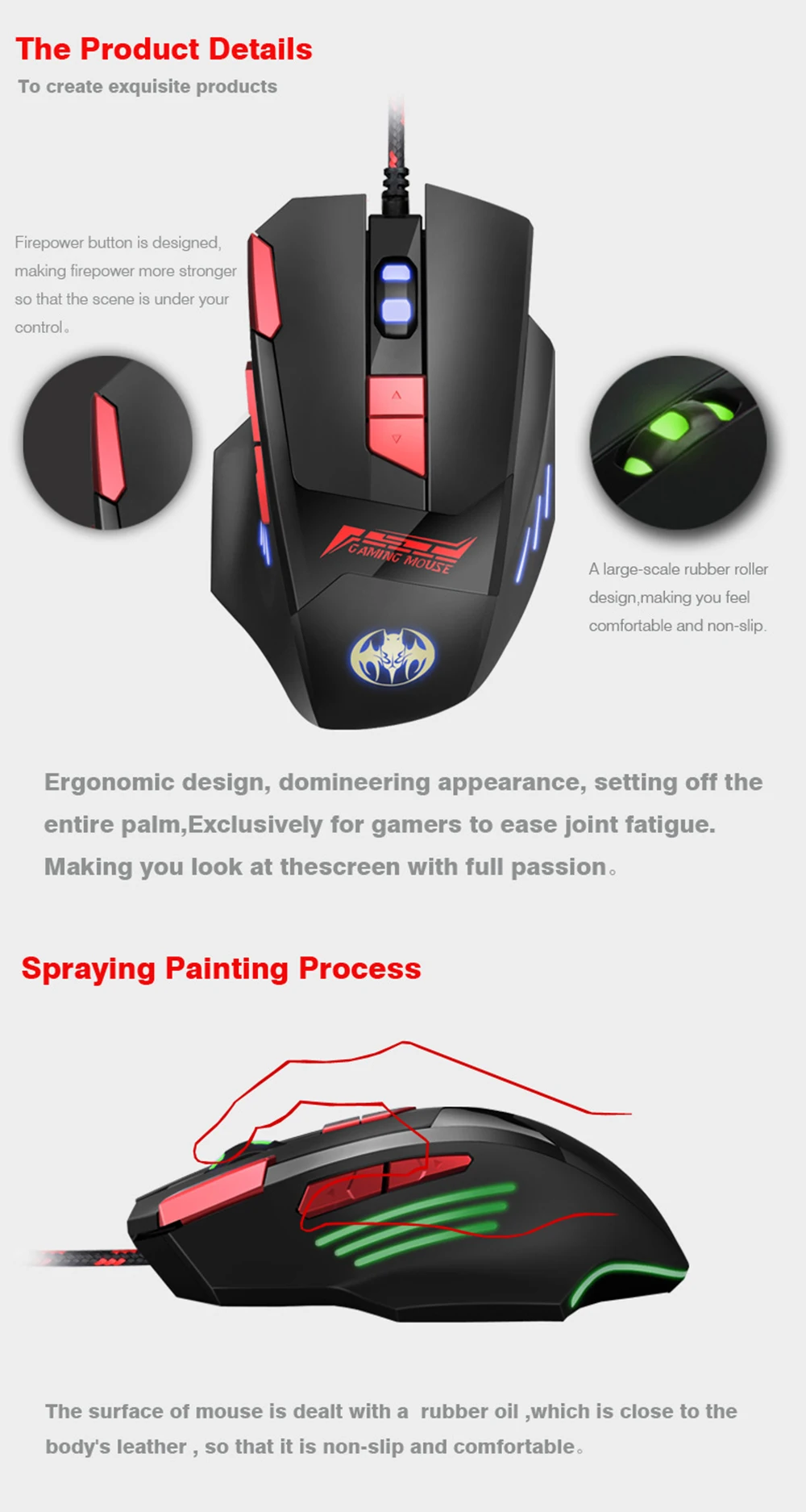
Process: rubber oil
Button life: 3-8 million times
Weight: 20 g
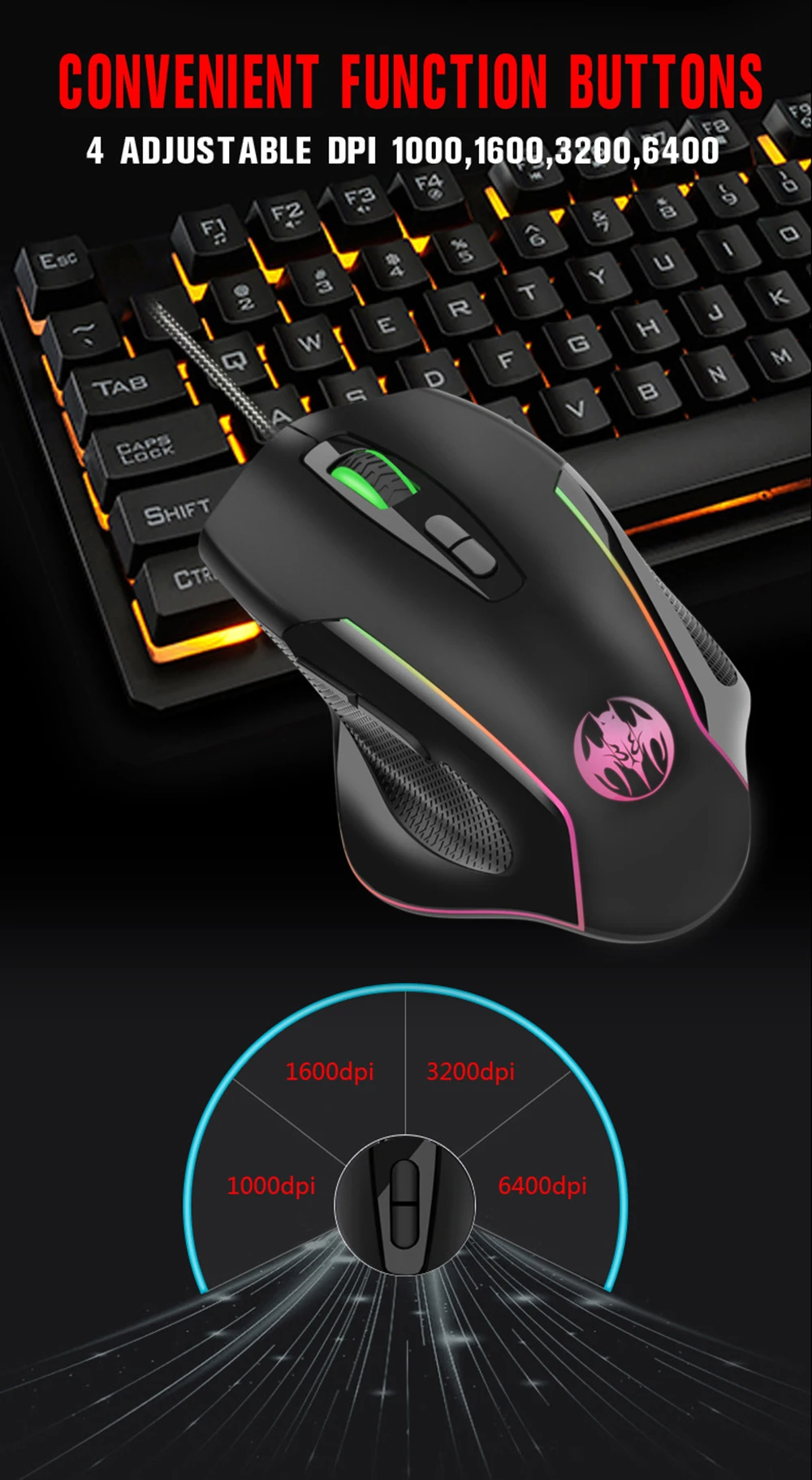
DPI defaults to 1000:1000-1600-3200-6400
Color: Black
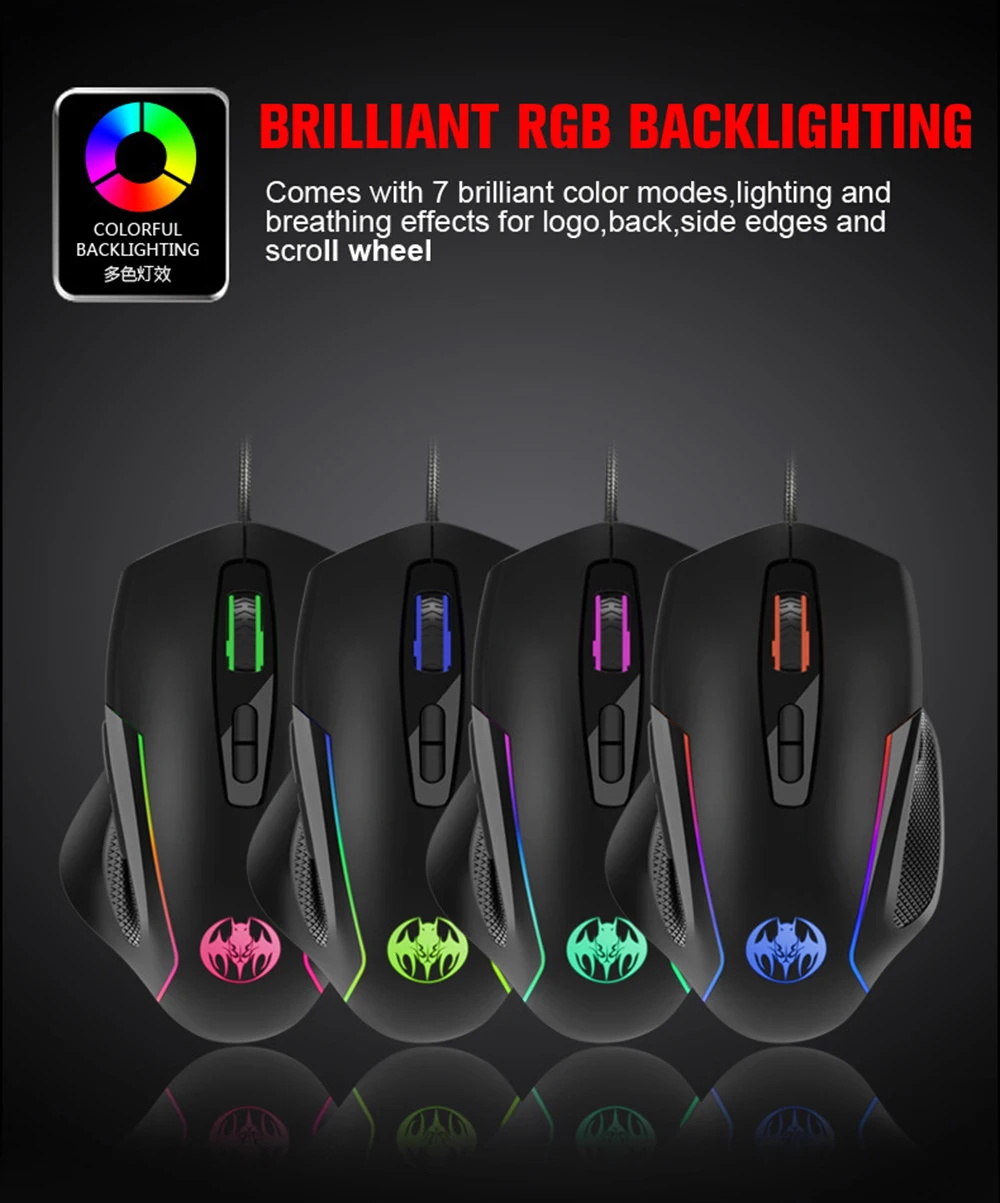
Luminous color: colorful breathing
Programming: Programmable
Product size: 129*85*45CM
Product weight: 160g
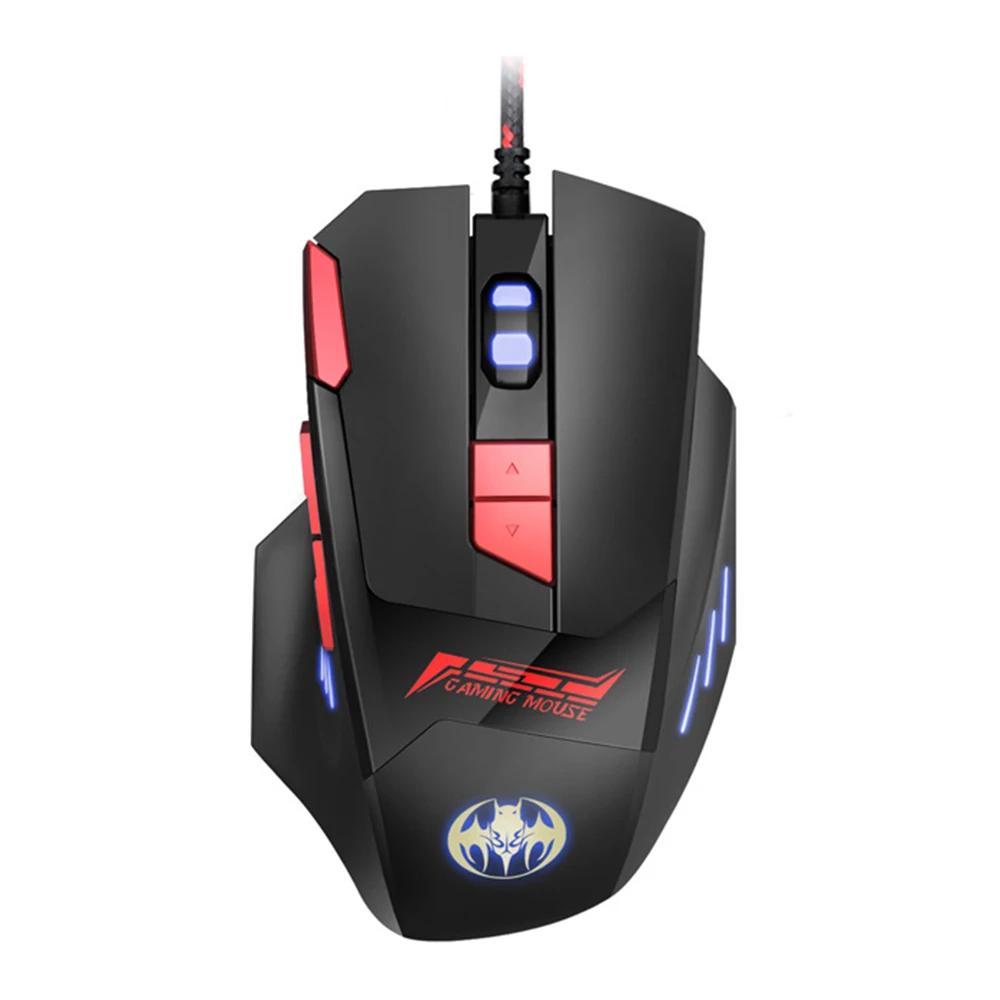
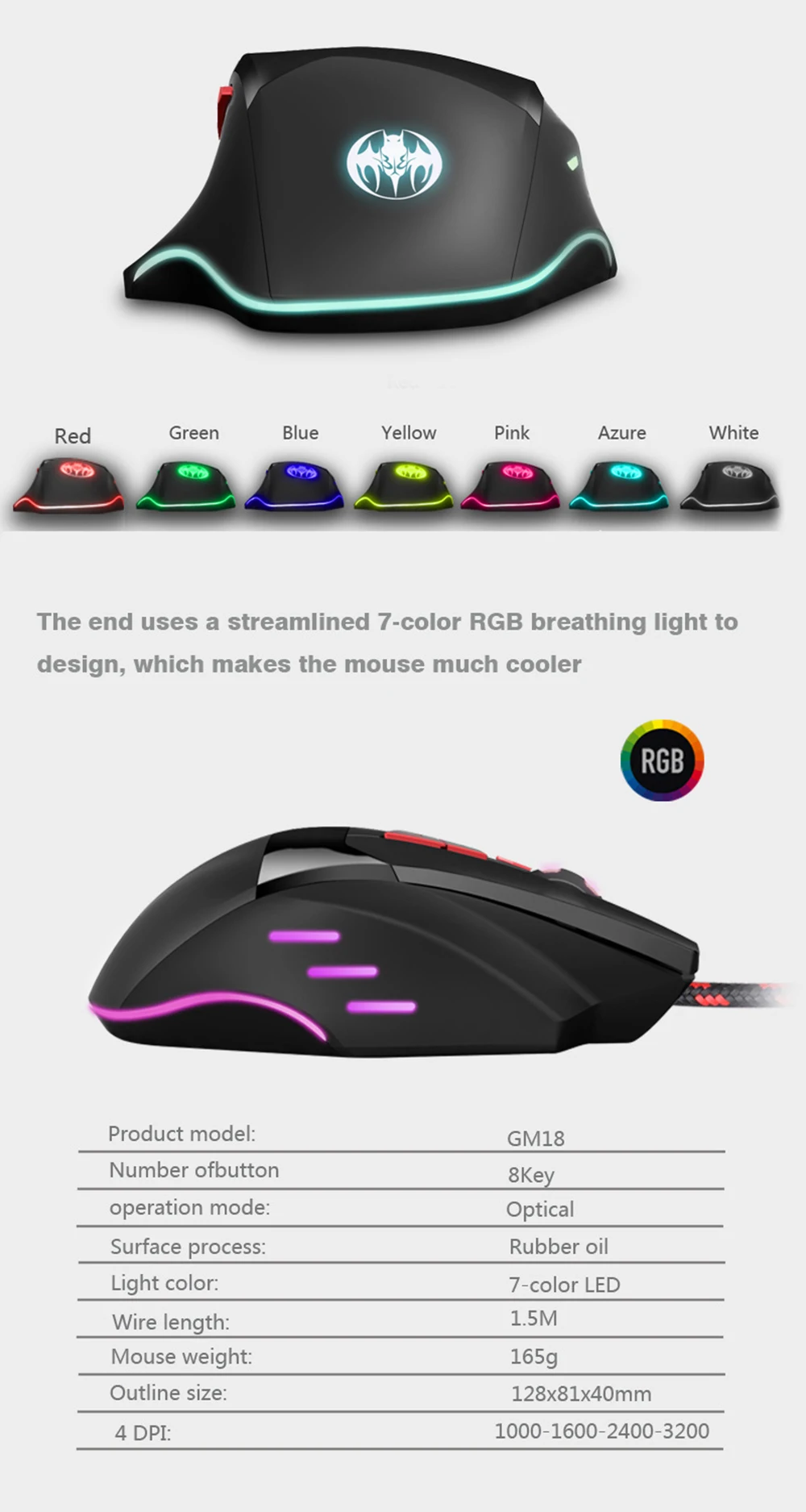
Mouse specification GM18:
Product model: GM18
Number of keys: 8 keys
Work Fanggong: USB wired optics
Voltage and current: USB 5V-100mA
Braided wire: 150±5MM
Process: rubber oil + varnish
Key life: 3-8 million times
Weight: 30g
DPI: 1200-1600-2400-3200DPI
Color: Black
Luminous color: RGB colorful breathing
Programming: programmable
Product size: 128*81*40mm
Product weight: 172g
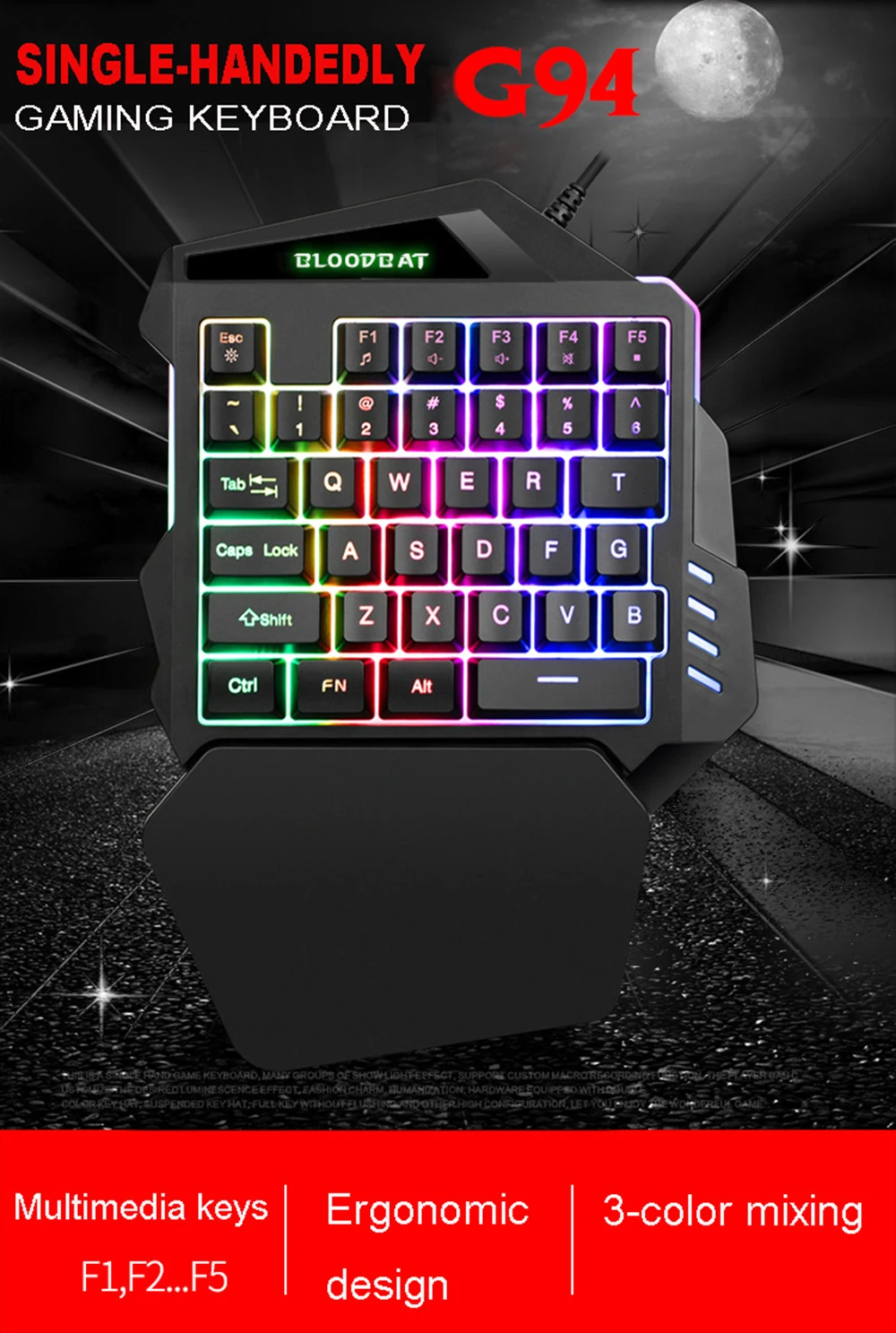
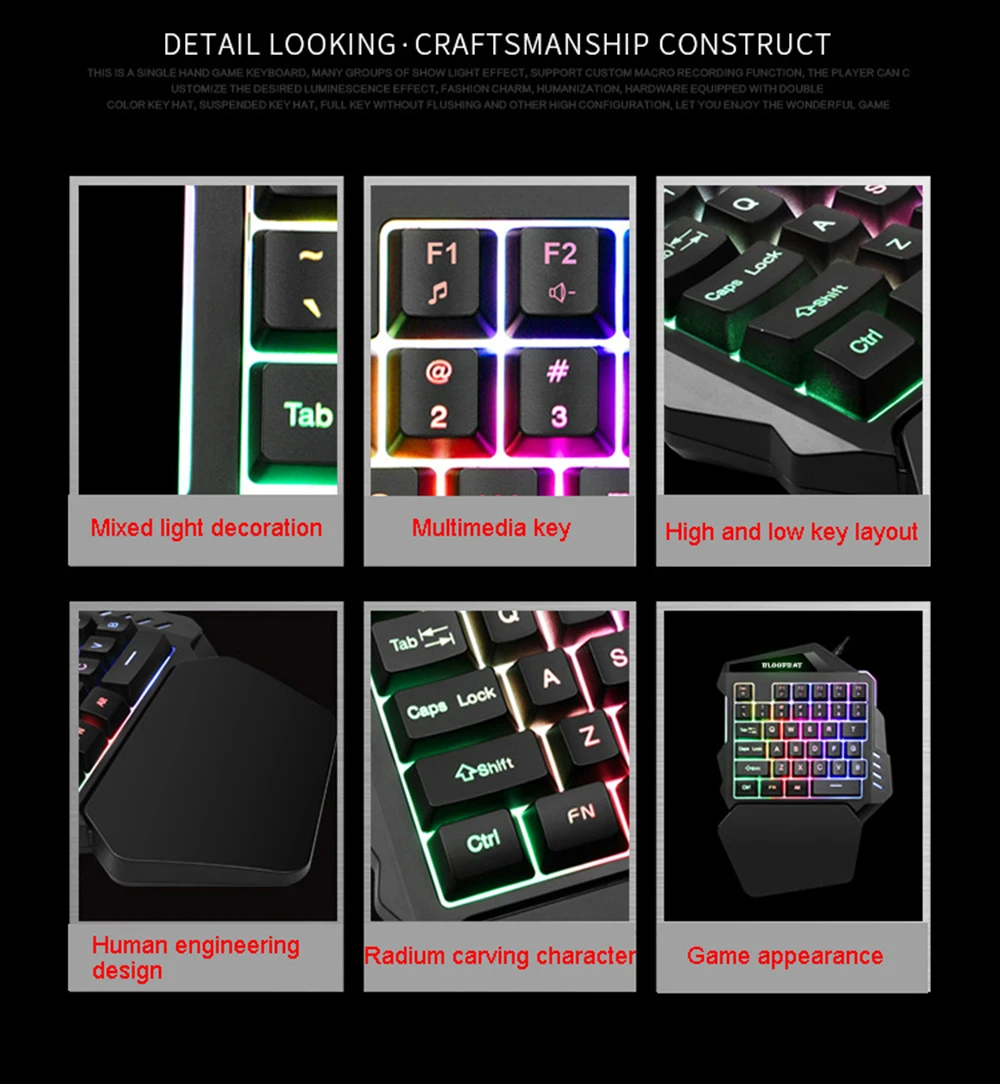
Keyboard Specifications:
Color: Black
Interface: USB
Material: ABS
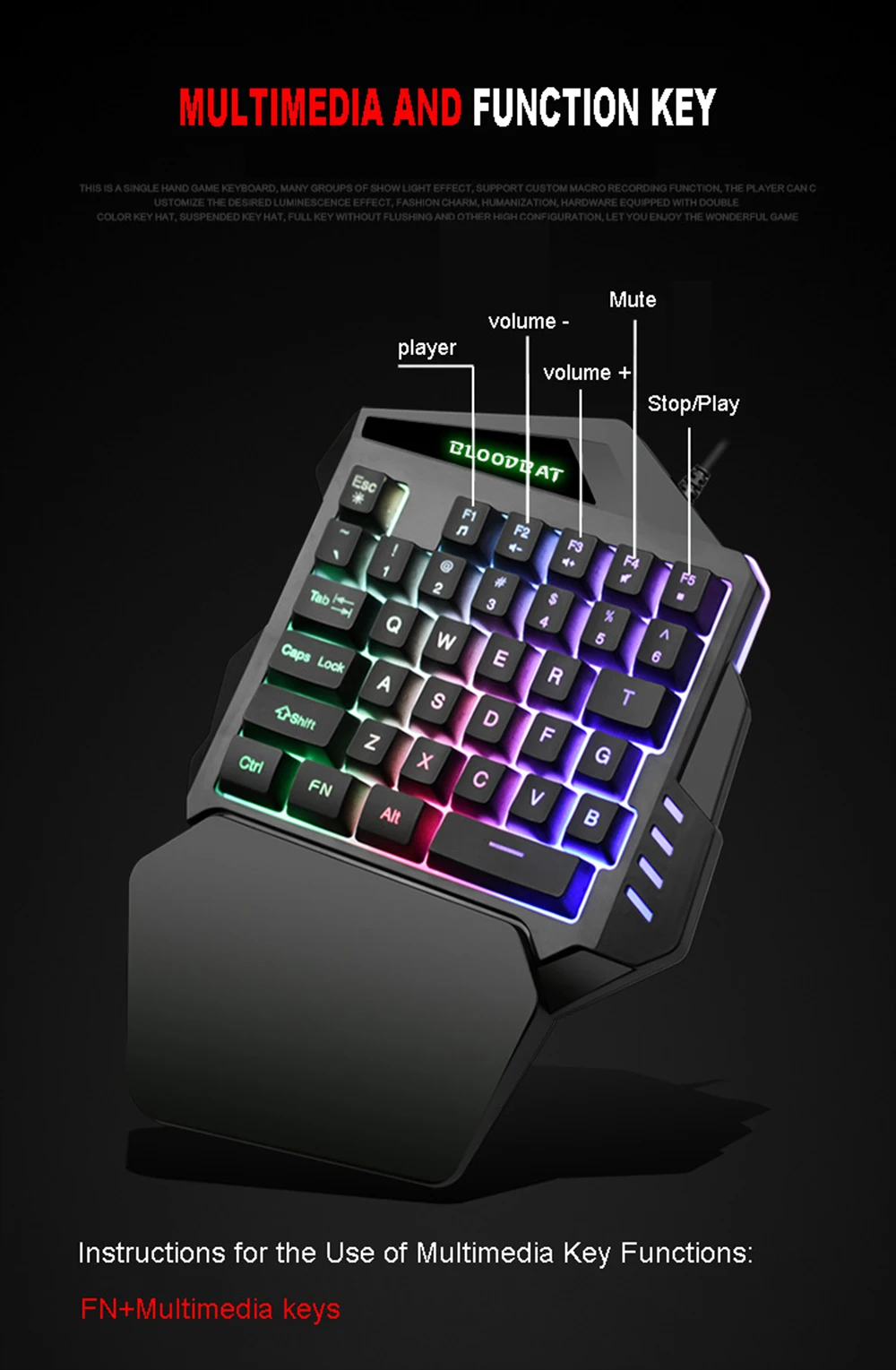
Keyboard Keys: 35 Keys
Keyboard size: 26*19*4CM
Support: IBM PC
WIN98SE/ME/2000/XP/VISTA/WIN7/WIN10
Package Included:
1*Wired Gaming Keyboard Combo
Specification:
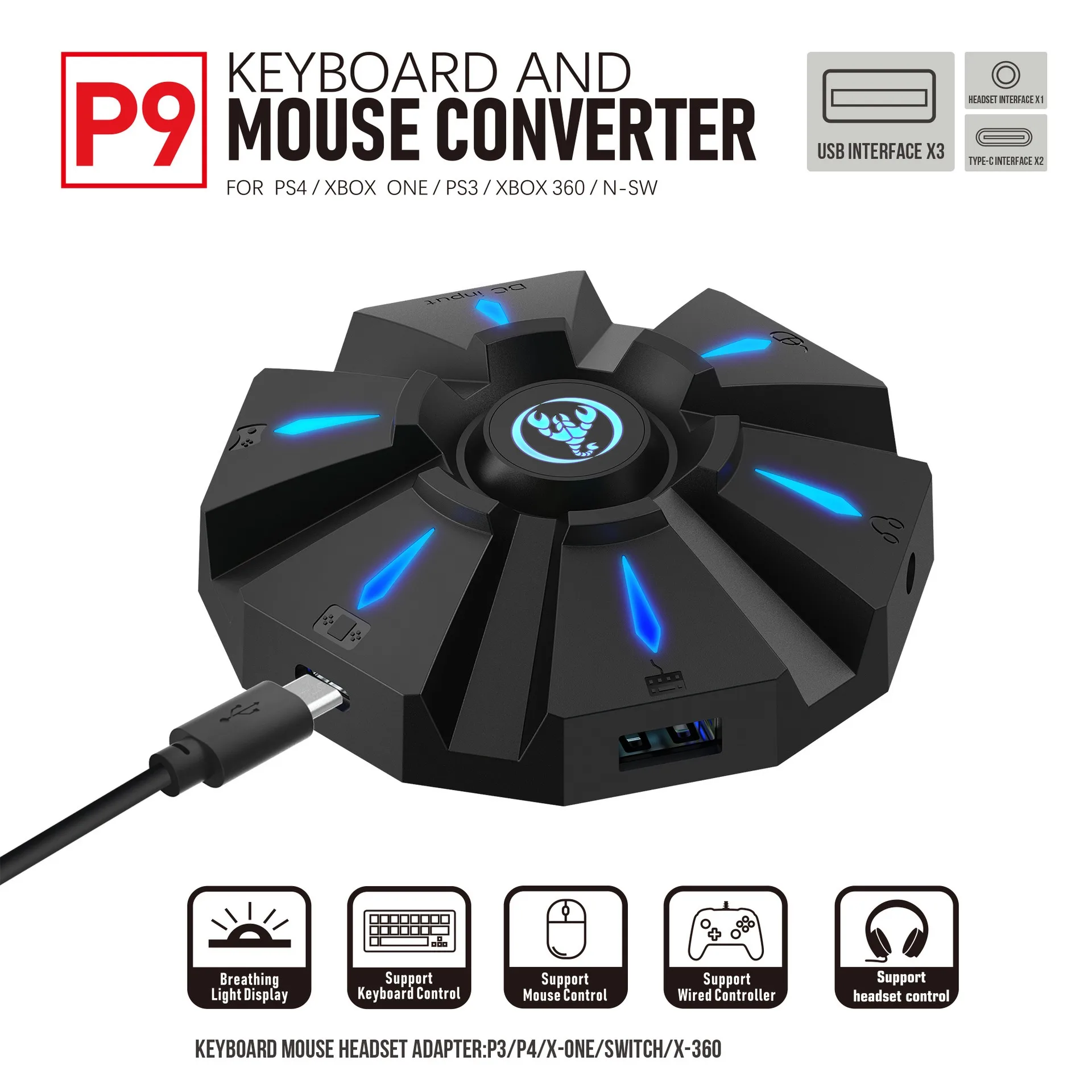
Item name: Keyboard mouse converter
Brand/Model: HXSJ/P9
Color: Black
Material: ABS
Product interface: TYPE-C charging interface
Rated voltage / current: DC 5V / 100
mA
Product weight: 83g
Product size: 8.7*8.7*2.4cm
Package weight: 197g
Packing size: 12.8*13.8*4.2cm
Suitable game consoles: PS4, Xbox One, PS3, Xbox 360, N-Switch
Packing list:
1 * Keyboard mouse converter
1 * User manual
2*TYPE-C Data cable charging cable (100cm length)
1*Color box English packaging
PRODUCT CONNECTION INSTRUCTIONS:
Start the console and connect the adapter via a USB TYPE-C data cable (plug the USB port into the console, plug the TYPE-C port into the converter) then the LED will light up white.Plug the original wired controller to activate the yellow LED light.Insert the keyboard then the LED light turns red.Insert the mouse then the LED will turn green.After all is connected, the LED will cycle through yellow, cyan, purple, and pink.
SETTING INSTRUCTIONS:
1、Set Keyboard And Mouse Functions
■ Press the keyboard keys ESC + SPACE (space bar) at the same time to enter the function mode for setting the keyboard and mouse buttons (LED blue light).
■Press and hold the function button you want to set on the original device.
controller, then press the button on the keyboard or mouse you want to set, and release the button on the original controller and the button on the keyboard or mouse.
■After the setting is completed, press ESC + SPACE on the keyboard to save the current setting and exit the setting mode.
■For example: press ESC + SPACE (space bar) to enter the setting mode, press and hold the original SWITCH controller A key, and then press the keyboard F key to release the original SWITCH controller A key.The function of the controller A key.
2. Note on Keyboard and Mouse Setting Functions:
■ During the setting process, if you do not hold down the original controller function key or joystick until the end, the original set function of the keyboard or mouse will be cleared.
■When setting the functions of the original joystick to the left and right on the keyboard, the joystick must be pushed all the way to the end, and only the four directions of the joystick up, down, left, and right can be set.
■For the se
When the original joystick direction is pushed to the end, the mouse slides in the corresponding direction, and the mouse only supports the corresponding function of the left and right joystick directions.
■Original controller cross key supports 8 direction settings.
3、Mouse Speed Adjustment:
■The product supports mouse movement speed adjustment, the default is the third gear.
■Shaft speed adjustment: ESC + CAPSLOCK + A/ S/ D/ F / G
4. Mouse Y Axis Direction Switch:
The control of the Y axis in some games is opposite to the set value. The game operator can adjust the Y axis direction of the mouse according to his needs by pressing ESC + R.
5、Function Switching Instructions:
■Enter setting mode: ESC + SPACE
■ Default page 1: SC+ CTRL + Q
■Exit setting mode: ESC + SPACE
■Mouse speed switch: ESC + CAPSLOCK + A/ S/D/ F / G
■Y axis plus reverse: ESC + R
■Page area selection: ESC+ TAB+Q /W/ E/ R/ T
■Key value restore default: SC + CTRL + ALT (long press for 3 seconds)
6、Upgrade
There are instructions:
(you cannot upgrade at will without the correct upgrade program)
■On a Windows computer, open the upgrade software.When the converter does not enter upgrade mode, "Update firmware" is light gray.
■Connect the converter to the computer through the USB data cable.At this time, the converter's white LED is on, plug in the keyboard and the red LED is on.Press the keyboard keys SC + CTRL + ALT + SPACE and hold them for 3 seconds.At this time, the "Update rm ware" is black, click the "Update rm ware" button to update the converter rm ware.
■The OK window pops up and displays "Update Success", indicating that the upgrade is complete.Click OK.
SETTING INSTRUCTIONS:
The conversion box is connected to the console and not to the external devices, and is displayed as a white light.
■Insert the original controller to guide and display the yellow light.
Insert the first device to turn on the red light, then insert another device to turn on the green light, successfully turn yellow, and then
The color of the breathing light will change to yellow, green, purple, and pink (cycling).
Each color changes 4 times to transition to another color.
Press the set key function to light up blue.
CAUTION:
■To ensure the normal use of different consoles with keyboard and mouse, you must use the original controller (supporting wired functions) corresponding to each platform for guidance.
■The keyboard and mouse interface cannot be connected to the controller.
■ Supports 95% of keyboards and mice on the market. If you encounter incompatibilities, please provide the actual product to customer service for an upgrade.

Videos
Videos for this product